Developer and source checks
Certificate and profile warnings
Post-install permission review
Safe removal and recovery steps
Quick answer: Before installing an IPA, verify its original developer, download source, version, file hash, signing method, and requested profile. Back up important data, read every installation prompt, and monitor permissions and network activity afterward. A clean scan or valid signature is useful evidence, but neither guarantees that an IPA is safe.
Last reviewed: August 20, 2026
Important: No website, scanner, certificate, or checklist can guarantee that an IPA is completely safe. Install only apps you created, are authorized to test, or received from a developer and source you can verify.
Quick IPA Sideload Safety Checklist
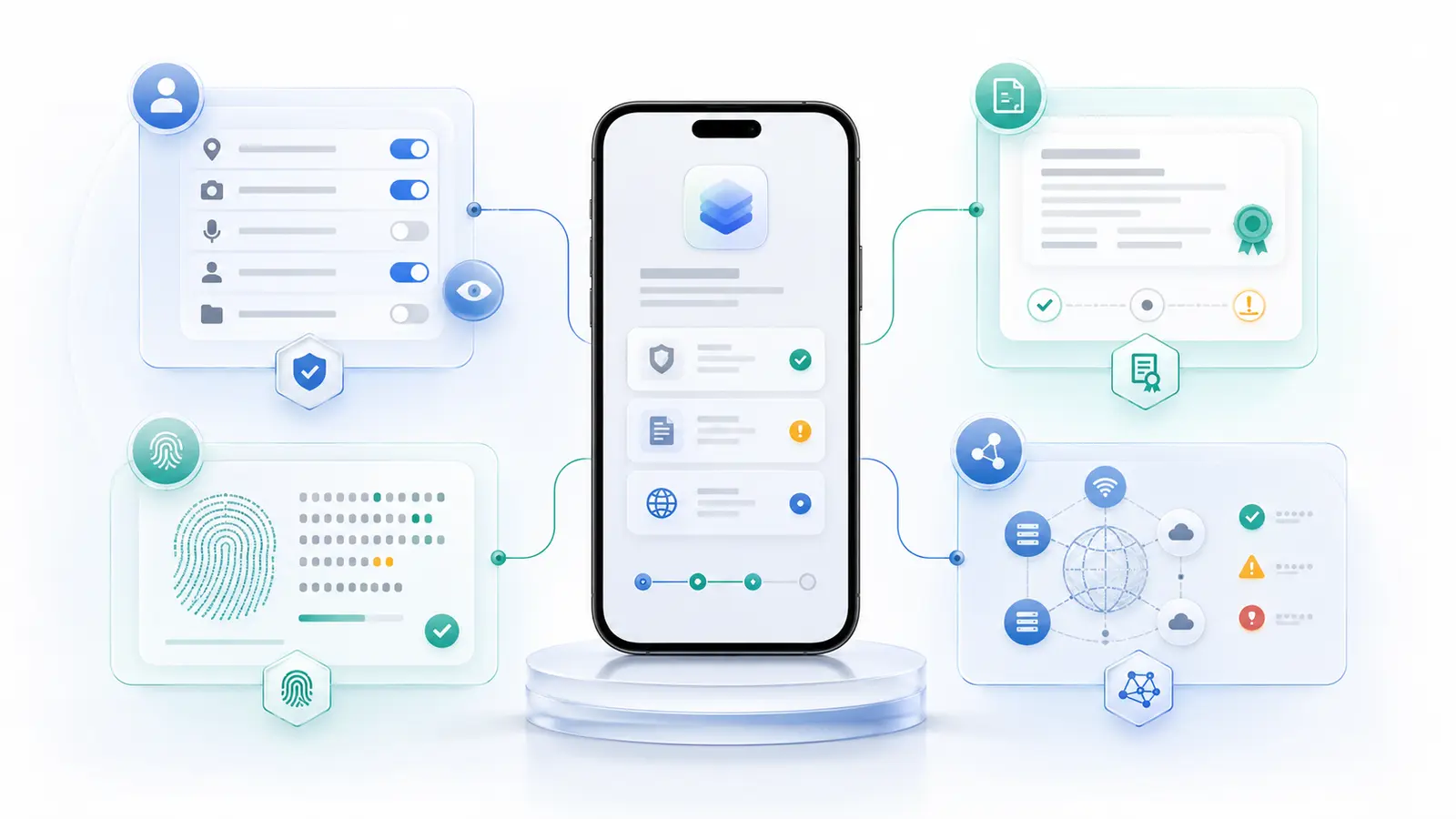
Use this checklist before you select Install or trust a developer entry.
Before downloading
- I can identify the original app developer.
- The download is linked from the developer’s official website or repository.
- The app version matches the developer’s release notes.
- The app is legally available for me to use.
- The website clearly explains whether the IPA was modified.
- The download page uses HTTPS.
- The filename and file size look consistent with the release.
- I checked for a developer-published SHA-256 hash.
- I understand where the download link redirects.
- The page does not make unrealistic “100% safe” or “never revoked” promises.
Before installing
- The file hash matches when an official hash is available.
- I checked the file or its hash using an appropriate security service.
- I understand who signs the app.
- I downloaded the IPA signer from its official source.
- I know whether the certificate is personal, development, ad hoc, or enterprise.
- I reviewed any configuration profile requested.
- The installation does not require unexplained device management.
- It does not ask me to trust an unknown root certificate.
- I backed up important app and device data.
- I am not testing an unfamiliar app on a sensitive work device.
After installing
- The app requests only permissions related to its purpose.
- It does not show an unexpected Apple Account sign-in page.
- It does not redirect me to unrelated websites.
- It does not ask me to install another profile, VPN, or certificate.
- I checked its permissions under Privacy & Security.
- I turned on App Privacy Report.
- I reviewed its battery and cellular-data usage.
- I can remove the app and its related profiles cleanly.
- I recorded the app version, source, signer, and installation date.
- I will repeat the checks before installing an update.
Stop immediately if…
Do not continue when:
- The original developer cannot be identified.
- The download domain impersonates another website.
- The checksum does not match.
- The app promises unauthorized paid features for free.
- The installation requires an unexplained root certificate.
- A public app asks to enroll the device in organization management.
- A signing website directly asks for an Apple Account password without explaining its authentication process.
- The app requests access to unrelated sensitive information.
- The download changes when opened from another device or browser.
- The website hides the final file source behind repeated redirects.
- The app asks for banking credentials, recovery codes, or password-manager data.
- The source claims that a certificate can never expire or be revoked.
If one of these warnings appears, close the page and investigate before proceeding.
What Does a Safe IPA Install Really Mean?
A safer IPA installation is one where you understand the app, developer, file, signing method, requested access, and removal process.
It does not mean that the app is guaranteed harmless.
A valid signature is not a safety guarantee
A signature helps iOS or iPadOS verify the app’s signing identity and provisioning. It does not prove that:
- The IPA came from the original developer.
- The app has not been modified before signing.
- The app respects your privacy.
- Its network traffic is trustworthy.
- Its distribution is authorized.
- Every requested permission is necessary.
A malicious or heavily modified IPA can still be signed with a technically valid certificate.
A successful installation is not a security test
An app appearing on the Home Screen proves only that the device accepted its installation workflow. It does not verify the quality or intent of the code inside it.
Installation, launch, privacy, and compatibility are separate checks.
A clean malware scan is not a guarantee
Security scanners can detect known patterns and suspicious characteristics. They may miss:
- New threats.
- Obfuscated code.
- Features activated after installation.
- Server-controlled behavior.
- Misleading login screens.
- Privacy-invasive but technically non-malicious tracking.
- Code downloaded or enabled later.
A zero-detection result is one signal. It is not proof.
iOS sandboxing reduces risk but does not verify intent
Apple uses sandboxing, code signing, entitlements, and runtime protections to restrict applications. Third-party apps normally receive their own isolated container and must use approved system services to request access outside it.
These controls reduce what an app can access directly. They do not decide whether an app’s requested access is reasonable or whether information you voluntarily enter is handled responsibly. Apple Platform Security
App Store review and sideloading use different trust models
App Store applications come from identified developers and pass through Apple’s review and distribution process. A sideloaded IPA may not have received the same review, even when it copies the name and icon of an App Store app. Apple App Store security
Original and modified IPAs have different risks
An original developer build can still contain vulnerabilities, but a repackaged IPA adds another party who may have changed its code, libraries, network endpoints, or interface.
Treat modified IPAs as a higher-risk category, especially when the changes are not documented.
Legal permission and technical safety are separate
An application can be technically clean but distributed without the developer’s permission. It can also be legally distributed but contain a security flaw.
Verify both authorization and safety before installing.
Understand the Main IPA Safety Risks
Repackaged or modified applications
A repackaged IPA may preserve the original app’s name, icon, and user interface while adding or removing code.
Injected frameworks and libraries
Injected frameworks may add legitimate testing features, but they can also:
- Monitor app activity.
- Change network requests.
- Add advertisements.
- Capture information entered into the app.
- Break the app’s sandbox or signing behavior.
- Introduce outdated dependencies.
Removed advertising or unlocked features
An app advertised as “premium unlocked” or “all purchases free” has usually been modified. The modification may violate the developer’s license, and the person who changed it may have added other code.
Changed network endpoints
A modified app can send login details or usage data to a server that is not controlled by the original developer.
Added account-stealing interfaces
A fake sign-in screen can look like part of the original app. Entering a password voluntarily may expose it even when iOS sandboxing is working correctly.
Fake download and impersonation websites
Warning signs include:
- Misspelled domains.
- Copied branding.
- Fake download counters.
- Invented user ratings.
- Urgent countdown timers.
- Repeated notification prompts.
- Links that change destinations.
- Several fake Download buttons.
- Requests to install unrelated browser profiles.
Unknown signing certificates
A certificate shows which account or organization signed the current build. It does not identify everyone who modified the IPA before it was signed.
Find out whether the certificate is controlled by:
- You.
- The original developer.
- An authorized testing organization.
- An unknown third-party signing service.
- A publicly shared enterprise account.
Revoked or misused enterprise certificates
Apple’s enterprise distribution system is intended for eligible organizations distributing proprietary internal applications. A public download signed with an organization’s enterprise certificate should not automatically be treated as authorized.
A certificate can also be revoked, causing the app to stop installing or opening.
Malicious configuration profiles
A configuration profile can add or change:
- VPN settings.
- Certificates.
- Email accounts.
- Web filters.
- Network proxies.
- Device restrictions.
- Device-management enrollment.
Review everything listed in the profile before approving it.
Root-certificate trust
Trusting an app developer and enabling full trust for a root certificate are different actions.
A trusted root certificate can affect how secure network connections are validated. Do not enable full trust for a root certificate from an unknown signing or download website.
Device-management enrollment
Mobile device management can give an organization significant control over a device. It is normal for an authorized work or school device, but unusual for a public IPA download.
Do not enroll a personal device in unknown management simply to install an app.
Excessive permissions
An application may ask for access to:
- Photos.
- Contacts.
- Location.
- Camera.
- Microphone.
- Bluetooth.
- Local Network.
- Health data.
- Motion and Fitness.
- Files.
The question is not only whether the permission is dangerous. Ask whether it is necessary for the feature you are using.
Suspicious network communication
Unexpected domains are worth investigating, but an unfamiliar domain is not automatically malicious. Apps may use cloud hosting, analytics, crash reporting, content delivery, authentication, and advertising services.
Compare the domain with the developer’s privacy documentation and the app’s purpose.
Data loss during updating or re-signing
Changing a bundle identifier or deleting an expired app can create a new app container or remove locally stored data.
Back up important information before:
- Updating.
- Re-signing.
- Changing signers.
- Deleting an expired app.
- Changing a bundle identifier.
- Installing a new iOS version.
Confidential IPA exposure through public scanners
A private development IPA may contain proprietary code, internal server addresses, testing credentials, or unreleased product information.
Do not upload a confidential build to a public scanning service unless you understand how the service handles submitted files.
Step 1: Verify the IPA Developer
The original developer is the strongest starting point for establishing trust.
Find the original developer
Look for:
- The official product website.
- An official GitHub or other repository.
- A verified developer profile.
- Official documentation.
- A TestFlight invitation.
- A company-controlled release page.
- A consistent support email on the developer’s domain.
A file-hosting page created by an unknown uploader is not the same as a developer-controlled release.
Confirm the app’s purpose
Read the official product description and compare it with the claims on the IPA download page.
Be cautious when a third-party source advertises features the original developer does not mention.
Check the developer’s history
Release frequency
A maintained project should have a believable update history. An old IPA labeled with a new version number deserves investigation.
Security reports
Check whether the developer has responded to security issues or published fixes.
Support contact
A real support route does not prove safety, but it gives you a way to verify whether the build is authorized.
Public issue tracker
Open-source projects may provide public issues, discussions, release tags, and build information. Review whether current users report unexpected behavior.
Confirm that the developer authorizes the IPA
The safest download route is a link published by the developer. If a third-party source repackaged the app, look for permission and a clear description of every change.
Warning signs of an impersonated developer
Stop when:
- The website claims to be official but uses a different domain.
- The developer name is misspelled.
- Support links lead to unrelated social accounts.
- Release notes are copied from another site.
- The same IPA is attributed to different developers.
- The site refuses to identify who built or modified the file.
Step 2: Verify the Download Source
Prefer a developer-controlled download
Use the developer’s website or official release repository when available.
For community builds, look for:
- Named maintainers.
- Source code.
- Reproducible build information.
- Versioned releases.
- Published hashes.
- Documented modifications.
Check the domain carefully
Misspelled domains
Look for replaced letters, added words, unusual hyphens, or misleading extensions.
Unexpected subdomains
A page under a free hosting subdomain is not automatically unsafe, but it should not be mistaken for the developer’s main domain.
URL shorteners and redirects
Expand or inspect shortened links before downloading. Multiple redirects can hide the final file host.
Unrelated file-hosting services
A third-party file host can be legitimate, but you need stronger evidence connecting the file to the developer.
Confirm that the page uses HTTPS
HTTPS helps protect the connection between your browser and the website. It does not prove that the website owner or file is trustworthy.
Avoid aggressive direct-install pop-ups
Do not approve:
- Calendar subscriptions.
- Browser notifications.
- Configuration profiles.
- VPN installations.
- Device-management enrollment.
These are not normal substitutes for an IPA download.
Check whether modifications are explained
A modified IPA should identify:
- The original app version.
- Who modified it.
- What was changed.
- Which libraries were added.
- Whether the bundle identifier changed.
- Which features may no longer work.
- The build and release date.
Review update and correction history
A trustworthy source should correct broken links, revoked certificates, inaccurate compatibility claims, and security concerns visibly.
Do not trust download counts alone
Download numbers, star ratings, and testimonial quotes can be fabricated. They are weaker evidence than developer-controlled releases, hashes, source code, and transparent documentation.
Step 3: Check the IPA Version and File Details
Match the version with official release notes
Confirm that the displayed version actually exists. Compare:
- Version number.
- Release date.
- Supported OS.
- Major features.
- Known problems.
Check the filename
A useful filename normally contains the app name and version. Be cautious when the file:
- Uses a misleading double extension.
- Is a different archive type.
- Has a random name.
- Does not end in .ipa.
- Is unexpectedly delivered through an installer executable.
Compare the file size
A major difference from a known release can indicate:
- Additional libraries.
- Removed resources.
- A damaged download.
- A different build.
- Compression changes.
File size alone cannot confirm safety, but unexplained differences deserve investigation.
Check minimum iOS or iPadOS support
An old or incompatible build may fail to install or crash. A website changing only the displayed compatibility text does not change the app binary.
Verify the bundle identifier
The bundle identifier distinguishes one app from another. A changed identifier can be intentional, but it may also:
- Create a separate app container.
- Break notifications.
- Disconnect iCloud data.
- Affect Game Center.
- Change keychain access.
- Prevent normal updates.
The source should explain why it changed.
Identify unexpected duplicate variants
If the IPA installs beside the official app, it probably has a different bundle identifier. Treat it as a separate application with separate data and signing.
Compare with a previous trusted version
For advanced review, compare:
- Bundle contents.
- Frameworks.
- Entitlements.
- URL schemes.
- Network domains.
- File hashes.
- Provisioning information.
Step 4: Verify the File Hash
What is a file hash?
A file hash is a value calculated from a file’s contents. If two copies have the same trusted SHA-256 hash, their contents match.
A matching hash confirms file integrity against that specific reference. It does not prove that the original reference file was safe.
Use a developer-published SHA-256 value
The reference hash should come from:
- The developer’s release page.
- A signed release record.
- Official documentation.
- Another authenticated developer-controlled channel.
A hash shown beside the download on the same untrusted mirror provides weaker evidence.
Check a hash on Windows
Open PowerShell in the folder containing the IPA and use:
Get-FileHash .\AppName.ipa -Algorithm SHA256
Compare the complete result with the developer’s published SHA-256 value.
Check a hash on macOS
Open Terminal and use:
shasum -a 256 AppName.ipa
Compare every character with the trusted reference.
What a matching hash proves
It shows that:
- Your copy matches the reference file.
- The download was not altered after that reference hash was created.
- A partial or corrupted download is less likely.
What a matching hash does not prove
It does not show that:
- The developer is trustworthy.
- The app is free of malicious behavior.
- Distribution is authorized.
- The reference file was reviewed.
- The signing certificate is valid.
- The app is compatible.
What to do when the hash does not match
Do not install the file.
Delete it, download it again from the official source, and repeat the comparison. If it still differs, ask the developer before proceeding.
Step 5: Scan the IPA Carefully
Search the hash before uploading
When a scanning service supports hash lookup, search the SHA-256 value first. A previous analysis may already exist, allowing you to review results without uploading the full file.
Understand scanner results
Zero detections
This means the participating engines did not flag the sample at that time. It is not a guarantee.
Check:
- Analysis date.
- File type.
- File details.
- Signing information.
- Community notes.
- Behavior information when available.
One or two detections
A small number may be a false positive, generic heuristic, or early signal.
Investigate:
- Detection name.
- Whether the engines agree.
- Whether the detection concerns an injected library.
- Whether the app is obfuscated.
- Whether a newer analysis exists.
Do not dismiss the result automatically.
Multiple related detections
Several engines identifying similar suspicious behavior is a strong reason to stop and obtain a clean build from the developer.
Do not upload confidential IPAs publicly
VirusTotal states that its private-scanning workflow is separate from its standard upload experience. Do not assume a normal upload is private. Review the service’s current data-handling terms before submitting proprietary software. VirusTotal Private Scanning
For a confidential build, consider:
- Searching the hash only.
- Using an approved private scanner.
- Running internal static analysis.
- Asking the organization’s security team.
- Reviewing the source and build pipeline.
A scanner cannot verify every runtime behavior
A file scanner cannot guarantee how a remote server will respond after installation or whether an app will later show a misleading login screen.
When to ask a security professional
Seek specialist review when the IPA:
- Handles financial information.
- Uses health data.
- Accesses corporate systems.
- Installs VPN or network extensions.
- Contains confidential code.
- Requests unusual entitlements.
- Will be deployed to many devices.
Step 6: Inspect the IPA Package
Basic package inspection can reveal useful information, but it cannot prove that an application is safe.
What is normally inside an IPA?
An IPA is an archive containing the application and its resources.
Payload folder
The Payload folder normally contains the main .app bundle.
Application bundle
The bundle includes code, assets, metadata, frameworks, and possibly extensions.
Info.plist
This file describes settings such as:
- Bundle identifier.
- App version.
- Display name.
- Minimum OS version.
- URL schemes.
- Background modes.
- Permission-purpose strings.
Embedded provisioning profile
A development, ad hoc, or enterprise build may include provisioning information connected to its signature.
Frameworks and extensions
The app may include libraries, widgets, share extensions, notification services, or other executable components.
Check the bundle identifier
Compare it with the expected identifier. Record any differences.
Check the minimum OS version
Confirm that the binary—not only the download page—supports the intended version.
Review declared URL schemes
Custom URL schemes can let other apps or websites open particular parts of an app. Unexpected or copied schemes may create conflicts.
Review background modes
Look for capabilities such as:
- Audio.
- Location.
- Bluetooth.
- Background processing.
- Remote notifications.
- External accessory communication.
Each should make sense for the app.
Review app transport settings
Broad exceptions allowing insecure network communication deserve closer inspection.
Review entitlements
Entitlements grant approved capabilities to the app. OWASP recommends reviewing permissions and capabilities during iOS static analysis. OWASP Mobile Application Security Testing Guide
Push notifications
Re-signing may change or break notification access.
iCloud containers
An unofficially signed variant may not access the original developer’s iCloud container.
Keychain groups
Keychain groups affect which protected credentials the app can access.
App Groups
App Groups allow related apps and extensions from the same developer team to share certain data.
Health and Home capabilities
These concern sensitive information and should match the app’s stated purpose.
VPN or network extensions
These deserve a higher level of review because they can influence device network traffic.
Look for unexpected frameworks
Compare included libraries with the original project or previous trusted build. An unfamiliar framework is not automatically harmful, but undocumented additions require an explanation.
Compare modified and original packages
Advanced reviewers can compare file trees, hashes, entitlements, frameworks, strings, and network configuration.
Know the limit of package inspection
A beginner can verify metadata and obvious differences. Determining what compiled code actually does requires professional static and dynamic analysis.
Step 7: Choose a Trusted IPA Signer
The signer is part of the safety chain, but it does not replace IPA verification.
Download the signer from its official source
Avoid copied installers, unofficial mirrors, and search advertisements using the signer’s name.
Understand Apple Account handling
Before entering an Apple Account:
- Read the signer’s official privacy and authentication explanation.
- Confirm that the tool is the expected version.
- Review the sign-in prompt.
- Use two-factor authentication.
- Stop if the tool redirects to an unrelated login page.
Know which certificate signs the app
Free personal development certificate
Commonly used by AltStore, SideStore, and Sideloadly. Apps normally require regular refreshing.
Paid Apple Developer certificate
Provides additional development capabilities and longer validity, but does not verify the IPA’s safety.
Personal P12 certificate
Protect the file and its password. Do not upload them to an unexplained service.
Enterprise certificate
Intended for eligible organizations distributing internal proprietary apps.
Publicly shared certificate
May be revoked and may have unclear ownership. Treat it as a weaker trust model.
Check whether the signer is maintained
Look for current releases, compatibility notes, documentation, and support.
Understand open-source limits
Open source allows inspection of published code, but a downloaded binary may not necessarily match that code unless the build process is verifiable.
Avoid unknown web-based signers
Do not upload sensitive IPAs, certificates, provisioning profiles, or account credentials to a service that does not clearly explain its ownership and data handling.
For a complete comparison, read the IPA signer selection guide.
Step 8: Prepare Your iPhone or iPad
Back up important information
Create a current backup and export important app data before testing an unfamiliar build.
Use a supported operating system
Keep the device on a version supported by the signer and app. Do not install beta software only to follow a sideloading tutorial.
Use a passcode and two-factor authentication
A strong device passcode protects local data. Two-factor authentication adds protection to the Apple Account used for signing.
Check available storage
Low storage can interrupt signing, installation, updates, and backups.
Record existing profiles and certificates
Before installation, check:
- Settings → General → VPN & Device Management
- Settings → General → About → Certificate Trust Settings
Take screenshots for your records, but blur sensitive organization or account information before sharing them.
Turn on App Privacy Report before testing
Go to Settings → Privacy & Security → App Privacy Report and turn it on.
Apple says the report starts gathering information after it is enabled. It can show data and sensor access along with network domains contacted by apps. The report data is encrypted and stored on the device. Apple Support
Use a secondary device for higher-risk testing
A spare device with no important accounts is safer than testing an unknown modified app on a primary phone.
A secondary device still needs updates, secure credentials, and careful monitoring.
Avoid unfamiliar apps on work devices
A managed work or school device may contain confidential data and organizational access. Follow the organization’s policy and ask its administrator before sideloading.
Understand Developer Mode
Developer Mode permits local development workflows. Turning it on does not certify a signer or IPA as safe.
Step 9: Review Every Installation Prompt
Read every prompt instead of following a tutorial mechanically.
“Trust This Computer”
Approve this only when:
- The computer belongs to you or a trusted organization.
- You intentionally connected the device.
- The computer is expected to participate in signing.
- You understand that a trusted computer can communicate with the device.
Developer App trust
The developer entry should match the account or team used for signing. An unexpected name is a reason to stop and check the signer.
Enterprise developer trust
Apple’s enterprise trust process is for authorized proprietary organizational applications. Do not assume a public app is legitimate because an enterprise organization name appears in Settings. Apple enterprise app guidance
Configuration profile installation
Before approving a profile, review every listed payload.
Organization name
Confirm the organization exists and has a legitimate reason to configure your device.
Installed certificates
Unknown certificates require investigation.
VPN settings
A VPN can route network traffic. Confirm who operates it and why it is required.
Device-management rights
Do not grant management control to an unknown app-download website.
Web filters and proxies
These can affect browsing and network connections across the device.
Root-certificate trust
Installing a profile containing a certificate does not always enable full SSL/TLS trust automatically. iOS has a separate Certificate Trust Settings area for manually installed root certificates.
Do not enable full trust simply because a download tutorial instructs you to do so.
Unexpected payment prompts
Do not enter payment information into an unofficial app until the developer, payment provider, terms, and support process are verified.
Unexpected Apple Account pages
Close the app when a sign-in screen:
- Uses an unrelated domain.
- Appears inside an unfamiliar web view.
- Requests recovery codes.
- Asks for more information than expected.
- Does not match Apple’s normal authentication flow.
Step 10: Check the App’s First Launch
Open it before signing in
Explore the basic interface before connecting an important personal account.
Confirm that it matches its purpose
A calculator should not ask to manage a VPN. A wallpaper app should not need Contacts. A simple game should not request health information.
Deny unrelated permissions initially
You can grant access later when a real feature needs it.
Watch for fake system prompts
A prompt drawn inside an app can imitate an iOS alert. When uncertain, close the app and check Settings directly.
Avoid entering sensitive credentials
Do not test an unfamiliar IPA with:
- Banking accounts.
- Primary email.
- Password managers.
- Work accounts.
- Health portals.
- Cryptocurrency wallets.
- Recovery codes.
Check for unexpected redirects
A sideloaded app repeatedly opening Safari, advertising pages, profile downloads, or unrelated stores is a warning sign.
Step 11: Review App Permissions
Open Settings → Privacy & Security and the app’s individual Settings page.
Camera and Microphone
Allow access only when using a feature that clearly needs it. Watch for access indicators appearing unexpectedly.
Photos
Choose limited photo access when the app needs only selected images.
Contacts
A social or communication feature may need Contacts. A general utility usually does not.
Location
Never
Use when location is not needed.
Ask Next Time
Useful when you want to decide each time.
While Using the App
Appropriate for a visible feature that needs current location.
Always
Grant only when continuous background location is central to the app and the developer is trusted.
Bluetooth
Bluetooth can be needed for accessories or nearby-device functions. Deny it when unrelated.
Local Network
Local Network access allows discovery or communication with nearby devices and services. A remote-control or casting app may need it; a basic editor may not.
Motion and Fitness
Grant only for a feature that genuinely uses movement or fitness information.
Health data
Health information is highly sensitive. Prefer official, identifiable applications with clear privacy practices.
Background App Refresh
Disable it for apps that do not need background updates.
Notifications
Notification permission is lower risk than health or contact access, but it can still be abused for spam, misleading alerts, or repeated promotions.
Files
Be cautious when an app requests broad file access unrelated to its purpose.
Reset Location and Privacy
If many permissions were granted accidentally, Apple provides Settings → General → Transfer or Reset iPhone/iPad → Reset → Reset Location & Privacy.
This resets privacy decisions for all apps, so use it only when appropriate. Apple privacy controls
Step 12: Monitor the App After Installation
Continue reviewing the app during normal use.
Use App Privacy Report
Data and sensor access
Check how often the app accesses location, camera, microphone, contacts, photos, or other protected information.
App network activity
Review the domains contacted directly by the app.
Website network activity
Web content displayed inside apps can contact additional domains.
Most contacted domains
Investigate domains that appear frequently but do not match the app’s purpose or stated providers.
Compare domains with the developer’s services
Look for:
- Official API domains.
- Authentication providers.
- Cloud-hosting providers.
- Analytics services.
- Advertising networks.
- Crash-reporting services.
Do not label every third-party domain malicious. Ask whether it is disclosed and necessary.
Check cellular-data usage
Open Settings → Cellular and review whether the app uses more data than expected.
Check battery usage
Open Settings → Battery and review background activity. Unusual battery use can have many causes, but it is worth checking alongside other warning signs.
Review profiles and VPNs again
Return to VPN & Device Management after installation. Confirm that nothing unexpected appeared.
Watch for repeated sign-in prompts
Repeated requests can indicate a broken app, expired session, or phishing attempt. Do not keep entering credentials without understanding the cause.
Monitor account alerts
Take unexpected sign-in, password-reset, or two-factor authentication alerts seriously.
Keep Sideloaded Apps Safer Over Time
Treat every update as a new file
A trusted older version does not automatically make the next IPA trustworthy.
Repeat:
- Developer check.
- Source check.
- Version check.
- Hash comparison.
- Scan review.
- Permission comparison.
- Profile review.
Read the release notes
Look for changes to permissions, account access, networks, and included libraries.
Back up before updating
Updating with a different signer or bundle identifier can affect locally stored data.
Keep the signer updated
Use the official current release. Old signers may contain security problems or fail after an iOS update.
Refresh before expiration
Refreshing preserves access for free personal-development signing. Use the same account and bundle identifier when possible.
Distinguish expiration from revocation
- Expiration: the signing period reached its normal end.
- Revocation: the certificate is no longer accepted before its expected end.
Neither automatically proves that the IPA was malicious.
Remove apps you no longer use
Unused sideloaded apps still occupy storage, may retain permissions, and can become outdated.
Keep an installation record
Record:
| Field | What to save |
|---|---|
| App | Name and displayed version |
| Developer | Original developer |
| Source | Exact download URL |
| File | Filename and SHA-256 |
| Signer | Tool and version |
| Certificate | Type and expected expiration |
| Device | Model and OS version |
| Installation | Date installed |
| Permissions | Access granted |
| Profiles | Profiles, VPNs, or certificates added |
| Review | Date last checked |
How to Remove an IPA and Clean Up Safely
Back up app data if needed
Use an in-app export, account synchronization, or another developer-supported method.
Delete the application
Touch and hold the app, choose Remove App, then Delete App.
Remove unused developer entries
Developer entries may disappear after all associated applications are removed. Review the remaining entries under VPN & Device Management.
Remove unknown configuration profiles
Apple provides the following profile-removal path:
- Open Settings.
- Choose General.
- Open VPN & Device Management.
- Select the profile.
- Tap Delete Profile.
- Follow the onscreen instructions.
- Restart the device.
Removing a profile also removes its associated settings. Do not remove an authorized work or school profile without checking with its administrator. Apple Personal Safety
Remove unexpected VPN configurations
Delete only VPN configurations you recognize as unnecessary. An authorized work VPN may be required for access.
Review trusted root certificates
Open Settings → General → About → Certificate Trust Settings. Disable full trust for an unknown manually installed root certificate after confirming it is not required by an authorized organization.
Revoke unnecessary permissions
Check Privacy & Security for other apps or signers that received access during setup.
Review Apple Account sessions
Review trusted devices and account activity when you entered credentials into an unfamiliar service.
Change credentials when exposure is possible
Change a password from a trusted device when:
- You entered it into a suspicious page.
- The app displayed a fake login.
- You received an unexpected sign-in alert.
- Account information changed.
- A security provider recommends it.
You do not need to change every password simply because an IPA was installed.
What to Do If You Suspect a Harmful IPA
Stop using the app
Do not continue signing in or granting permissions.
Record what happened
Save:
- App name and version.
- Download URL.
- File hash.
- Signer.
- Certificate name.
- Profiles installed.
- Permissions granted.
- Screenshots of warnings.
- Times of unusual behavior.
Do not include passwords or recovery codes in screenshots.
Delete the app
Remove it from the device after preserving evidence or data you genuinely need.
Remove associated profiles, VPNs, and certificates
Review all related Settings areas carefully.
Change exposed passwords from a trusted device
Start with accounts entered directly into the suspicious app. Enable or review two-factor authentication.
Review account sessions
Sign out unfamiliar devices or sessions through the official account provider.
Contact the service provider
Contact the bank, email provider, employer, or other service when its credentials or data may have been exposed.
Contact Apple Support
Ask Apple Support for help when you cannot identify or remove a profile, certificate, management enrollment, or suspicious device behavior.
When a factory reset may be appropriate
A factory reset is a serious step and should not be the automatic first response.
Unknown management remains
Seek help if the device remains enrolled in management you cannot remove.
Profiles repeatedly return
This may indicate authorized device management or another unresolved configuration.
Persistent unexplained behavior continues
Document the behavior and ask Apple or a qualified security professional to review it.
Apple or a security professional recommends it
Create a safe backup plan before erasing. Avoid restoring an unknown profile or suspicious configuration afterward.
IPA Safety by Use Case
Personal app testing
Prefer your own build, Xcode, TestFlight, or a developer-controlled release. Avoid entering important accounts until the test build is verified.
Developer beta builds
Do not upload a confidential beta to a public scanner. Use approved internal tools and protect provisioning information.
Modified apps
Require:
- Named modifier.
- Documented changes.
- Source code when available.
- Published hash.
- Clear permission differences.
- No unauthorized paid-feature claims.
Emulators
Check the project’s official repository, required JIT method, app-source feed, and ROM or software licensing.
Games and social apps
These often request account access, notifications, Photos, Contacts, Microphone, or tracking. Use a test account when the build is not from the original developer.
Banking, health, and password apps
Use the official App Store or developer-authorized build for high-sensitivity accounts. Do not enter financial, health, password-manager, or wallet credentials into an unofficial modified IPA.
Children’s devices
Use Screen Time, review profiles, restrict account changes, and explain why unknown direct-install links should not be approved.
Work and school devices
Follow the organization’s policy. Do not remove authorized management or install unapproved software.
iOS beta devices
Recheck permissions, signers, and profiles after every beta update. A compatibility failure is not automatically a security incident.
Jailbroken devices
Jailbreaking changes the security model and may allow broader system access. Use specialist security guidance rather than assuming the normal sandbox checklist is sufficient.
IPA Risk-Level Guide
| Relative risk | Example | Recommended action |
|---|---|---|
| Lower | Your own build signed through Xcode | Confirm signing and test normally |
| Lower–medium | Authorized TestFlight or developer beta | Verify invitation and permissions |
| Medium | Open-source app from an identifiable maintainer | Verify release, hash, binary, and permissions |
| Medium–high | Modified IPA with documented changes | Inspect differences and avoid sensitive accounts |
| High | Anonymous IPA with no developer or checksum | Do not install |
| Very high | Requires unknown root trust or device management | Stop and remove related profiles |
“Lower risk” does not mean guaranteed safe.
Frequently Asked Questions
Are IPA files safe?
An IPA can be safe, unsafe, vulnerable, or modified. Safety depends on the developer, source, code, signature, profile, permissions, and network behavior. Verify each file rather than trusting the format itself.
Can an IPA contain malware?
Yes, an IPA can contain unwanted or harmful code. iOS protections limit app access, but they do not prove that the app’s behavior or requested permissions are trustworthy.
How do I check whether an IPA is safe?
Verify the original developer and download source, compare its SHA-256 hash, review scanner results, inspect signing and profile requirements, and monitor permissions and network activity after installation.
Can I scan an IPA before installing it?
Yes. Search its hash first when possible. If you upload the full file, review the scanner’s privacy terms and never upload a confidential or proprietary build to a public workflow without authorization.
Does zero antivirus detection mean an IPA is safe?
No. It means the participating engines did not flag the file during that analysis. New, obfuscated, server-controlled, or privacy-invasive behavior may not be detected.
Is it safe to upload an IPA to VirusTotal?
It may be useful for a public, non-confidential sample, but do not assume a standard upload is private. VirusTotal provides a separate private-scanning workflow. Review its current terms before submitting any file.
Is a signed IPA safe?
Not necessarily. A signature tells the device about the signing identity and provisioning. It does not prove the IPA is original or harmless.
Is an enterprise-signed IPA safe?
An authorized internal enterprise app can be legitimate. A public download using an unknown enterprise certificate is weaker evidence because enterprise distribution is intended for eligible organizations’ proprietary internal apps.
Can a sideloaded app steal passwords?
A sandboxed app cannot freely read every other app’s data, but it can collect information you type into it or display a fake login page. Never enter sensitive credentials into an unverified app.
Can an IPA access my photos or contacts?
Only after receiving the relevant system permission in normal iOS workflows. Review and limit that permission under Privacy & Security.
Is Developer Mode dangerous?
Developer Mode enables local development features and increases exposure to development workflows. It does not automatically make the device infected, nor does it verify a sideloaded app.
Is trusting a developer profile safe?
Trust it only when the developer entry matches the app and signing process you intentionally used. Do not trust an unknown organization to remove a warning.
Is trusting a root certificate safe?
It can be appropriate for an authorized organization, but an unknown root certificate can affect trusted network connections. Do not enable full trust without understanding its owner and purpose.
Should I install an MDM profile for an IPA?
A public IPA normally should not require unknown device-management enrollment. MDM is appropriate for authorized work, school, and organizational deployments.
Can a VPN make sideloading safe?
No. A VPN can protect or route network traffic, but it cannot verify the IPA’s code, remove injected frameworks, or prevent you from entering information into a fake interface.
Are modified IPAs safe?
Some may be legitimate authorized community builds, but modification adds another party and code path to trust. Require clear change documentation, source information, hashes, and careful testing.
Should I use my main Apple Account with a signer?
Use only an official signer whose authentication process you understand. Avoid entering any Apple Account into an unknown web signer. A separate account reduces some exposure but does not make an untrusted tool safe.
How do I remove all parts of a sideloaded app?
Delete the app, then review VPN & Device Management, Certificate Trust Settings, VPN configurations, privacy permissions, and related signer apps. Do not remove authorized work or school settings.
Should I reset my iPhone after installing a suspicious IPA?
Not automatically. Delete the app, remove related profiles, secure exposed accounts, update the device, and contact Apple Support if suspicious behavior or unremovable management remains.
How We Research IPA Safety
IPA Library iOS separates simple user checks from professional application-security analysis.
Source-verification process
We review developer-controlled websites, official repositories, release notes, download paths, and documented modifications.
File-integrity process
We compare version information, filenames, file sizes, and developer-published cryptographic hashes when available.
Signing and profile review
We identify the signing method, certificate type, provisioning requirements, configuration profiles, root certificates, VPNs, and device-management requests.
Permission review
We compare requested access with the app’s stated purpose and document changes between versions.
Network-activity review
App Privacy Report and other approved testing methods can help identify contacted domains. Network activity must be interpreted in context.
Test record
Every hands-on review should record:
| Test item | Required evidence |
|---|---|
| Device | Exact iPhone or iPad model |
| OS | Exact iOS or iPadOS build |
| IPA | Version, filename, size, and hash |
| Source | Developer and download URL |
| Signer | Tool, version, and account type |
| Profile | Certificate and provisioning method |
| Permissions | Access requested and granted |
| Network | Domains observed |
| Result | Install, launch, restart, and removal status |
| Date | Exact test date |
What this checklist cannot guarantee
This checklist cannot prove that every line of compiled code is safe, predict future server behavior, or replace a professional security review.
Primary references
- Apple Platform Security
- Apple app runtime security
- Apple App Store security
- Apple App Privacy Report
- Apple privacy controls
- Apple enterprise app guidance
- Apple profile-removal guidance
- OWASP Mobile Application Security Testing Guide
- VirusTotal Private Scanning
Check Before You Install
A few minutes of verification can prevent a much longer cleanup.
Start here: Use the Quick IPA Safety Checklist
Need an installation method?
Read the IPA Installation Guide
Not sure which signer to trust?
Read the IPA Signer Selection Guide
Looking for an app?
Browse the IPA Library
If the developer, source, certificate, or requested profile cannot be explained, stop before installing. Missing an app is less costly than exposing an important account or device.